Learn how to easily integrate 3D models into your Notion workspace. Our step-by-step documentation will show you how to embed interactive 3D viewers into your pages, allowing your team to view and collaborate on products in real-time.
.png)

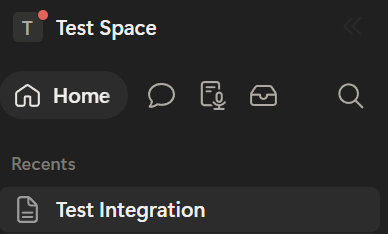
Open your Notion Page
Start by logging into Miro and opening the specific board where you want to showcase your 3D model. Navigate to the exact spot on your canvas where you want the viewer to be placed.

Copy the Link from colormass
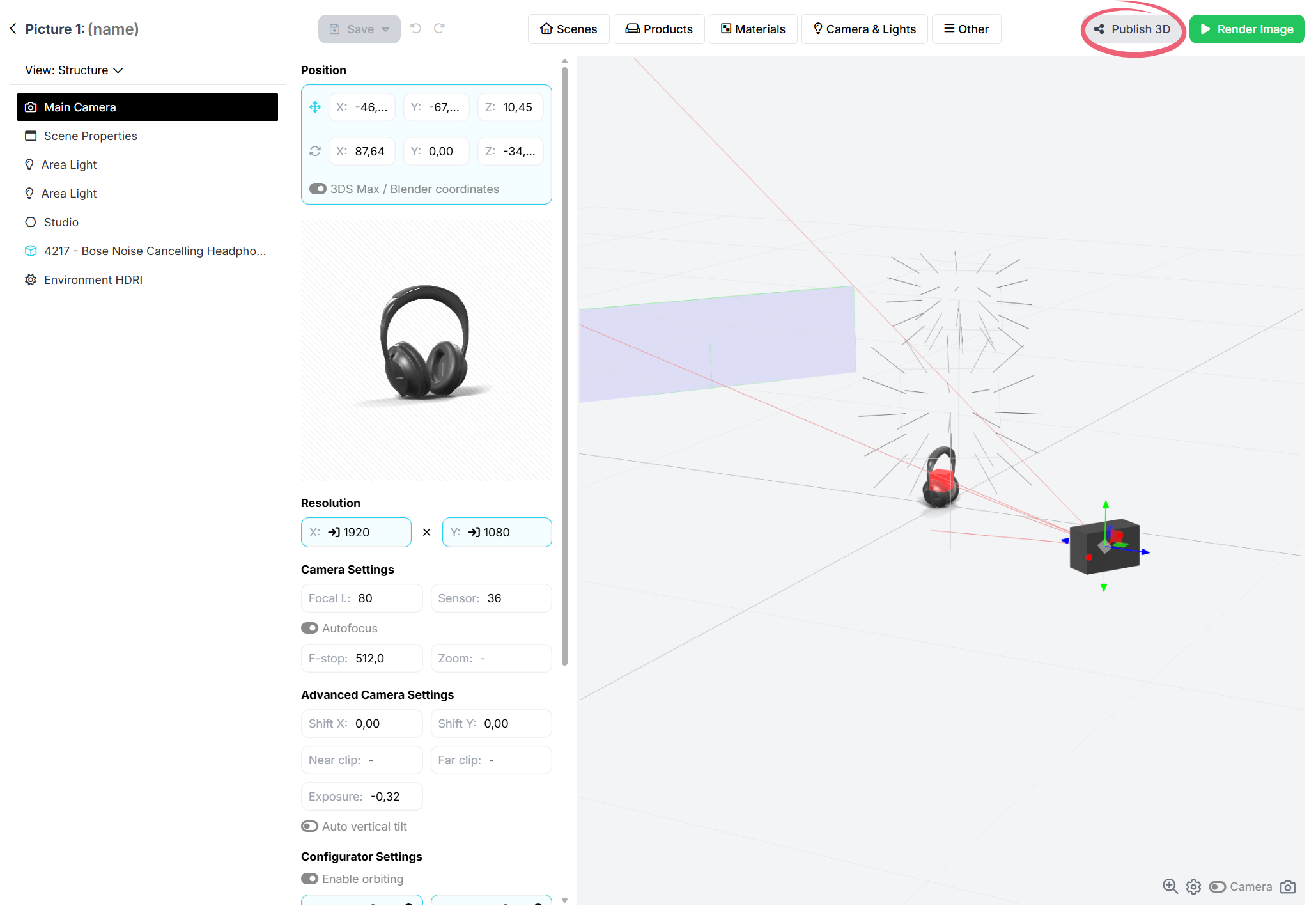
Next, open your 3D configurator setup in the Colormass platform. Click Publish 3D → Copy Configurator URL.

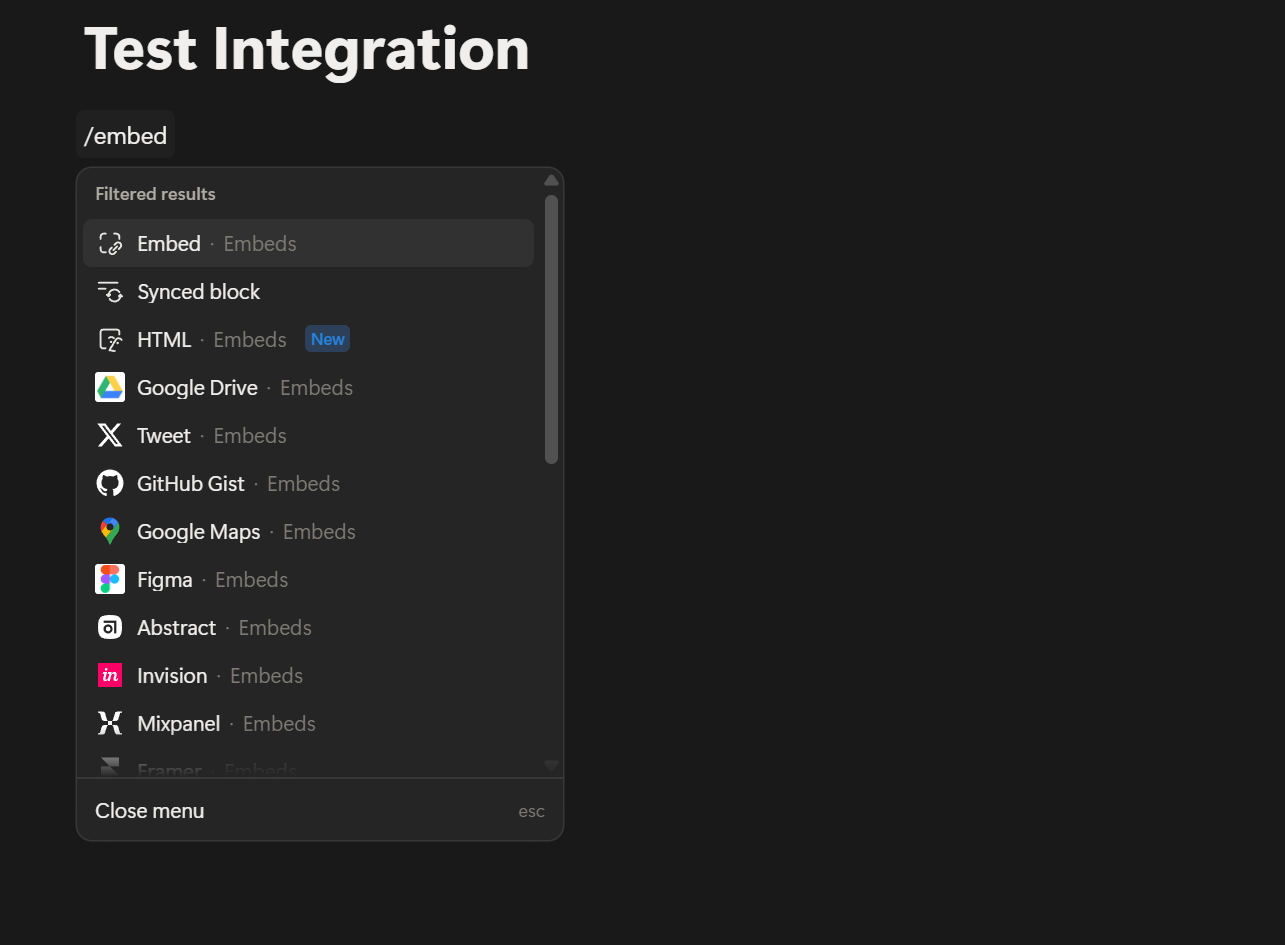
Embed 3D Viewer
Back in Notion go to your page and type /embed and press Enter to create an embed block. Paste your copied colormass link into the field and click Embed link. Once it loads, you can drag the edges to resize the 3D viewer to fit your layout perfectly.
See the screenrecording below to see all of these steps together.